
Slack
Every agent gets its own channel
No switching, no commands to learn. Each agent lives in its own Slack channel — open the channel, @mention the agent, get an answer under its own name.
How many times do I set this up? Once per agent. Every agent needs its own one-click "Add to Slack" — two agents means two clicks and two channels. Only the very first click asks Slack for permission; after that, each new agent is a single click.
Step 1
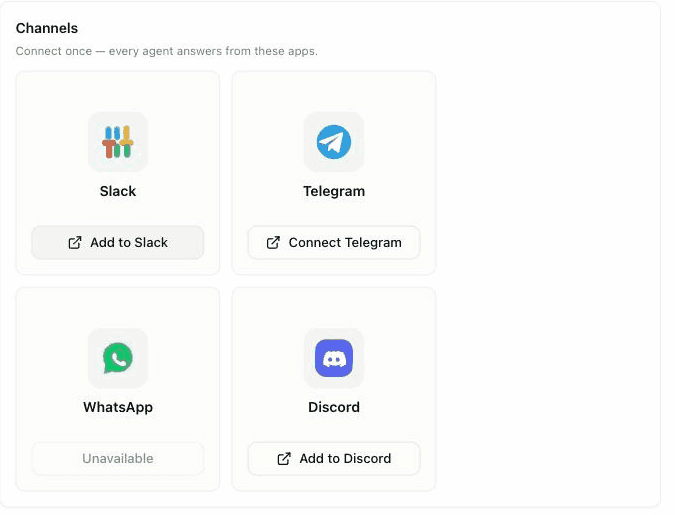
Add an agent in one click
On the agent's page, under Channels, click Add to Slack. The first time, Slack asks you to pick a workspace and press Allow. After that, adding another agent is a single click — no re-approval.
Step 2
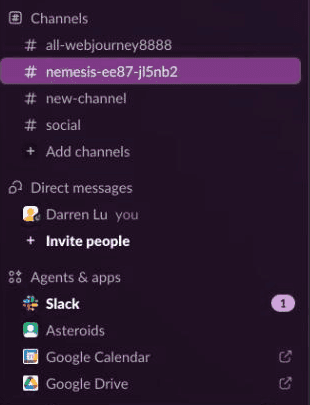
The channel appears by itself
Asteroids creates the agent's channel, posts a hello, and drops you straight into it. It sits in your sidebar like any other channel — because it is one.
Step 3
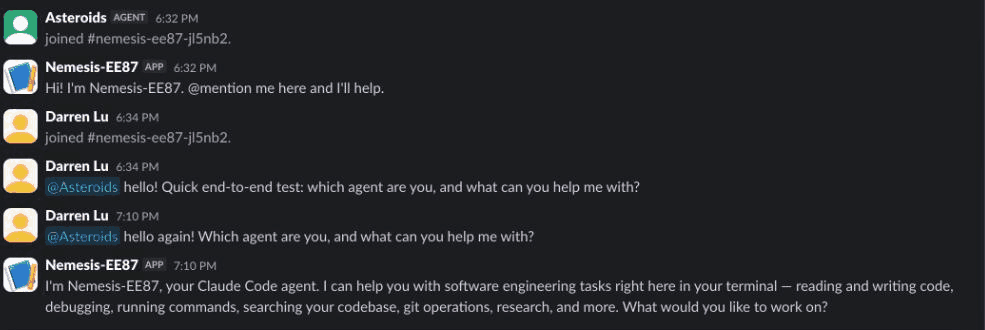
@mention it, get an answer
In the channel, @mention Asteroidswith your question. The reply comes back under the agent's own name — so even in a busy workspace it's always clear who's talking.
How do I switch between agents?
You don't — you open the other channel. Two agents means two channels, side by side in your sidebar. All of your agents are reachable at the same time, each with its own history, and a message can never reach the wrong one.
- Bring your team. Agent channels are regular public channels — teammates can join and @mention the agent too.
- Mention to talk. The agent answers when @mentioned; it stays out of ambient channel chatter.
- One agent per conversation, on purpose.Agents don't share channels, so there's never any doubt about who will answer.